
Appearance
First admin account
A new installation has no administrator. The first person to register becomes one. This page explains how that works, how to sign in to the admin panel, how to add staff, and how to get back in if you lose access.
The first account gets every role
When someone registers and there are no accounts in the database yet, the platform gives that account:
- every role:
user,admin,content_editor,p2p_appeal_judge,user_editor,assets_editor,finance_managerandsuperadmin - a verified email, so no confirmation email is needed
- verified KYC, so all identity-gated features are open
Every account registered after that is a normal user with only the user role.
Register as soon as the site is online
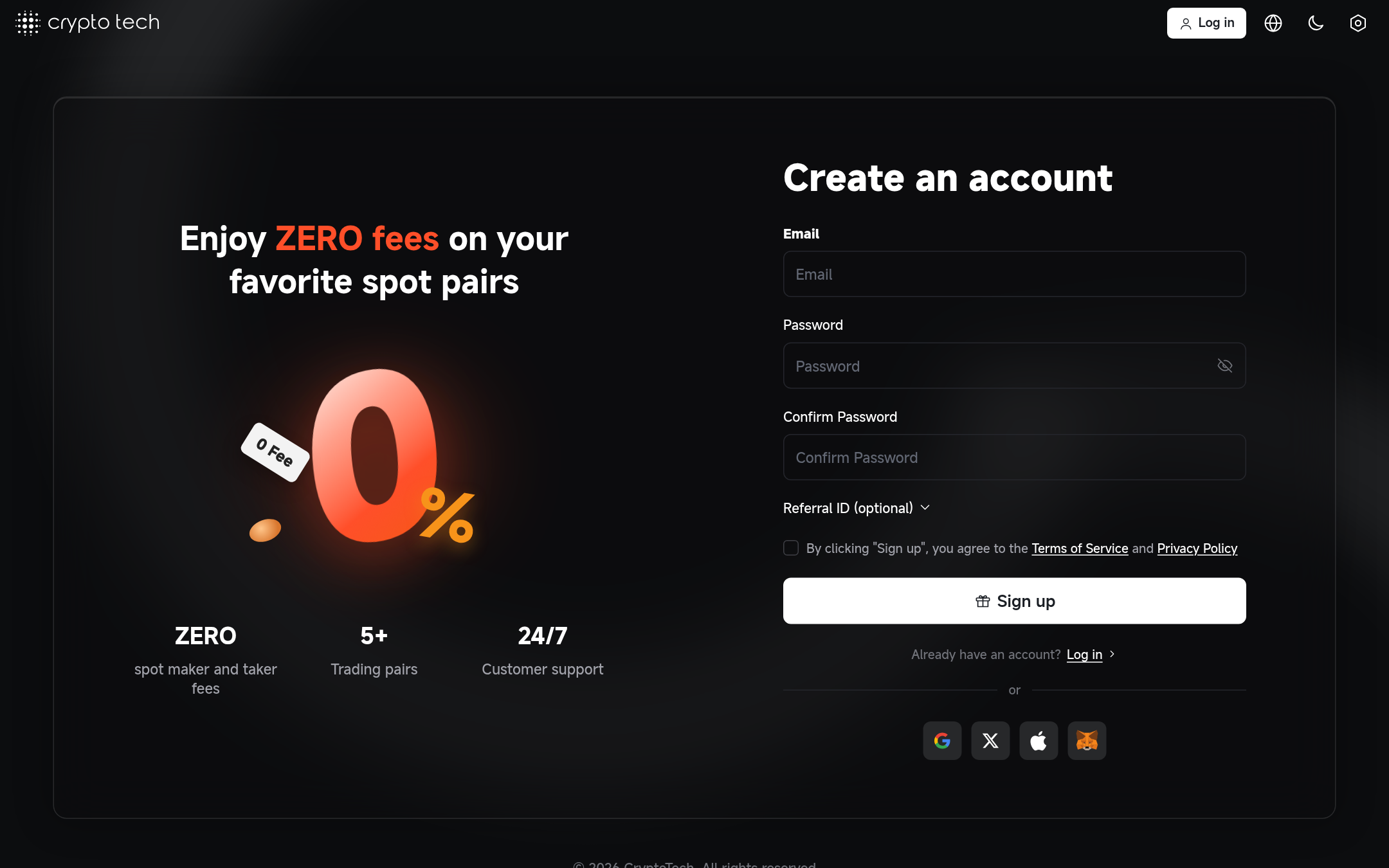
Until the first account exists, whoever registers first becomes the administrator. Open https://yourdomain.com/register and create your account right after installation, before you share the address with anyone.
Signing in to the admin panel
| Page | Address |
|---|---|
| Admin panel | https://yourdomain.com/exchange-control-panel |
| Admin sign-in | https://yourdomain.com/exchange-control-panel/admin-login |
If you open the admin panel while signed out, you're sent to the admin sign-in page. You can also sign in on the normal site and then open /exchange-control-panel.
The admin sign-in page has its own dark "Admin console" design, so staff can tell it apart from the customer login: a Restricted area badge, a Caps Lock warning, the visitor's IP address, and Encrypted connection (or a yellow Not encrypted (HTTP) warning when the site isn't on HTTPS yet). The captcha is asked here too when it's on, and 2FA comes next for accounts that have it. Search engines are told not to index the page.
Only accounts with the admin role can open the panel. Other signed-in accounts get an access error.
Maintenance mode doesn't lock you out
When Admin → Settings → General → Maintenance is on, visitors see the maintenance page, but accounts with the admin role can still use the whole site and the admin panel.
Protect the account
Do this before anything else:
- Use a long, unique password.
- Turn on two-factor authentication on the public site: open your account page and choose Enable next to Two-Factor Authentication (2FA) (address
/user/profile/2fa). Scan the QR code with an authenticator app. Every sign-in then asks for a six-digit code. - Keep the setup key that's shown under the QR code somewhere safe and offline. You can add it to a new phone if you lose the old one.
- Have a second admin with the
user_editorrole, so someone can reset your 2FA if needed (see below).
Adding staff
Staff are normal accounts that you give extra roles:
- Ask the person to register on the site with their work email.
- In the admin panel, open Users, find the account and open it.
- In the Roles card, tick Admin plus the roles for their job, then save.
Roles add up. Each admin section checks for its own role, so superadmin alone doesn't open Users or Reports. See Roles & permissions for which role opens which section, and suggested combinations.
Recovering access
Forgot your password
Use Forgot password on the sign-in page. The reset link is sent by email, so email settings must work. Test them as soon as you install.
Lost your 2FA device
- Another admin with the
user_editorrole can turn off 2FA for your account: Admin → Users → open the account → Disable 2FA.
No admin can sign in
If nobody with admin access can sign in, give a role from the server's command line. Run it in the project folder:
bash
php artisan role:manage [email protected] admin set
php artisan role:manage [email protected] superadmin set
The command takes the user ID or email, the role name, and set (give) or remove (take away). It prints a confirmation, or Wrong User Id or Email / Wrong User Role if something doesn't match. Repeat it for each role the account needs (user_editor, finance_manager, assets_editor, content_editor, p2p_appeal_judge).
Server access is admin access
Anyone who can run php artisan on your server can make themselves an administrator. Keep SSH access to a small group, and use SSH keys instead of passwords.