
Appearance
Admin panel tour
Everything you need to run the exchange is in the admin panel: markets, currencies, users, money, content and settings. This page shows how it's laid out and how the shared controls work.
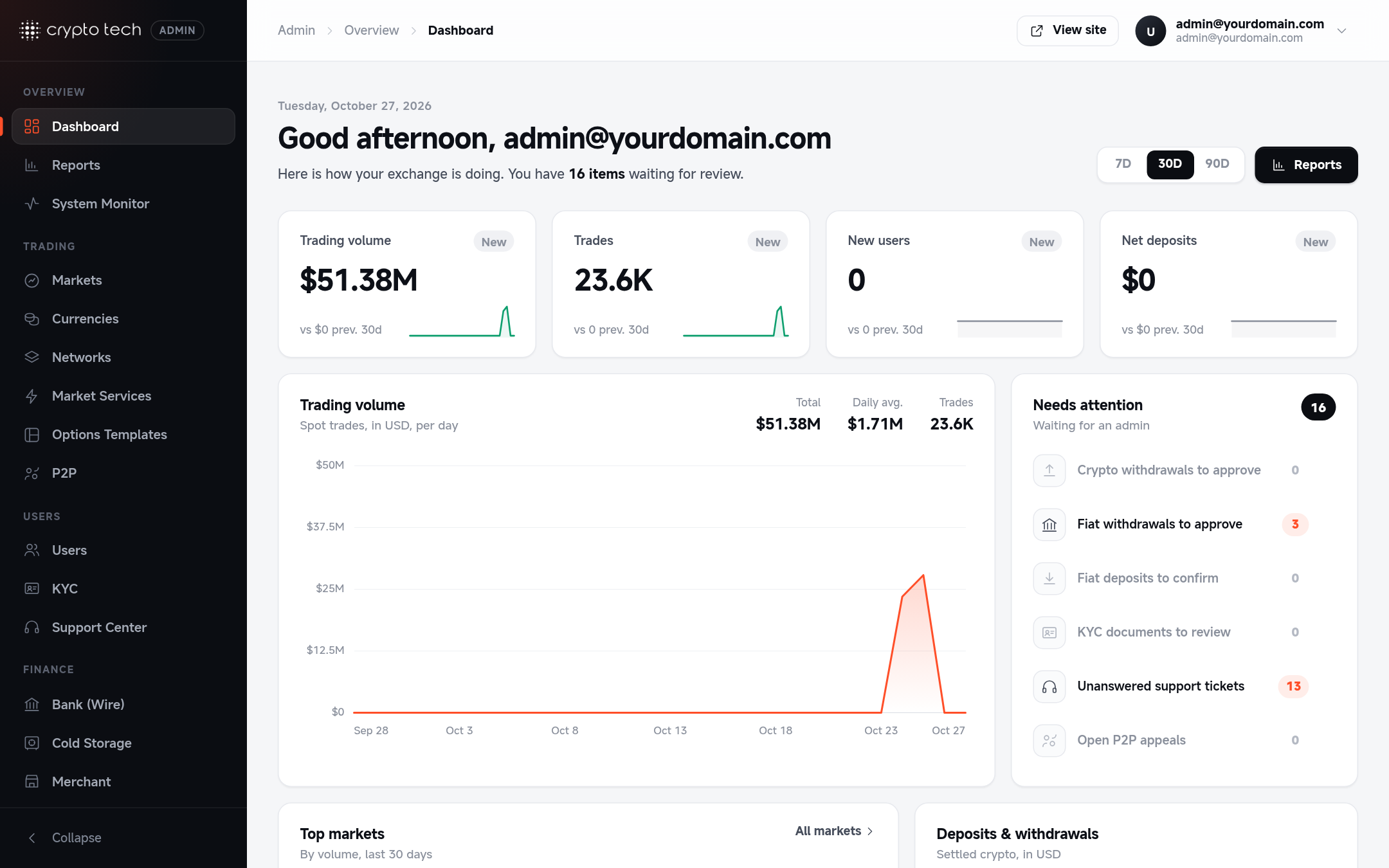
Signing in
Open https://yourdomain.com/exchange-control-panel. If you aren't signed in, you're taken to the admin sign-in page (/exchange-control-panel/admin-login).
Only accounts with the admin role can open the panel. What each person sees inside depends on their other roles. See Roles & permissions.
Maintenance mode
The admin panel keeps working when maintenance mode is on, so you can make changes while the site is closed to users.
The sidebar
The sidebar groups every section. People only see the items their roles allow.
| Group | Items |
|---|---|
| Overview | Dashboard, Reports, System Monitor |
| Trading | Markets, Currencies, Networks, Market Services, Options Templates, Copy Trading, Margin Trading, Futures Risk, Trading Bots, P2P |
| Users | Users, KYC, VIP Levels, Referrals, Airdrops, Notifications, Support Center |
| Finance | Bank (Wire), Cold Storage, Merchant |
| Earn | Staking, Launchpads, Lending, Vouchers |
| Content | Pages, Articles, Languages |
| System | Settings |
Some items appear only when their feature is switched on: Merchant when the merchant module is enabled, and Lending when LENDING_ENABLED=true. Cold Storage is always listed, but its rules can only be used on the plan that includes it (see Cold storage).
- Collapse: the Collapse button at the bottom shrinks the sidebar to icons. Your choice is remembered in this browser.
- Small screens: below tablet width the sidebar becomes a drawer. Open it with the menu button in the top bar.
The top bar
- Breadcrumb (Admin › group › page) shows where you are.
- View site opens the public site in a new tab.
- Your account menu (your name or email) has your profile and Log out.
Controls you'll see everywhere
| Control | How it works |
|---|---|
| Search and filters | Lists have a search box and status tabs (for example All / Active / Halted / Hidden). Counts on each tab show how many items match. |
| Save bar | Edit forms show a bar at the bottom as soon as you change something, with Save and Discard. Leaving the page with unsaved changes is safe: nothing is saved until you click Save. |
| Confirmations | Anything destructive (delete, reject, disable) asks you to confirm in a dialog first. |
| Toasts | Results appear as small messages in the corner: green for success, red for errors. |
| Tooltips | Hover an info icon or a truncated value to see the full text. |
| Pagination | Long lists are split into pages, with page numbers at the bottom. |