
Appearance
Email
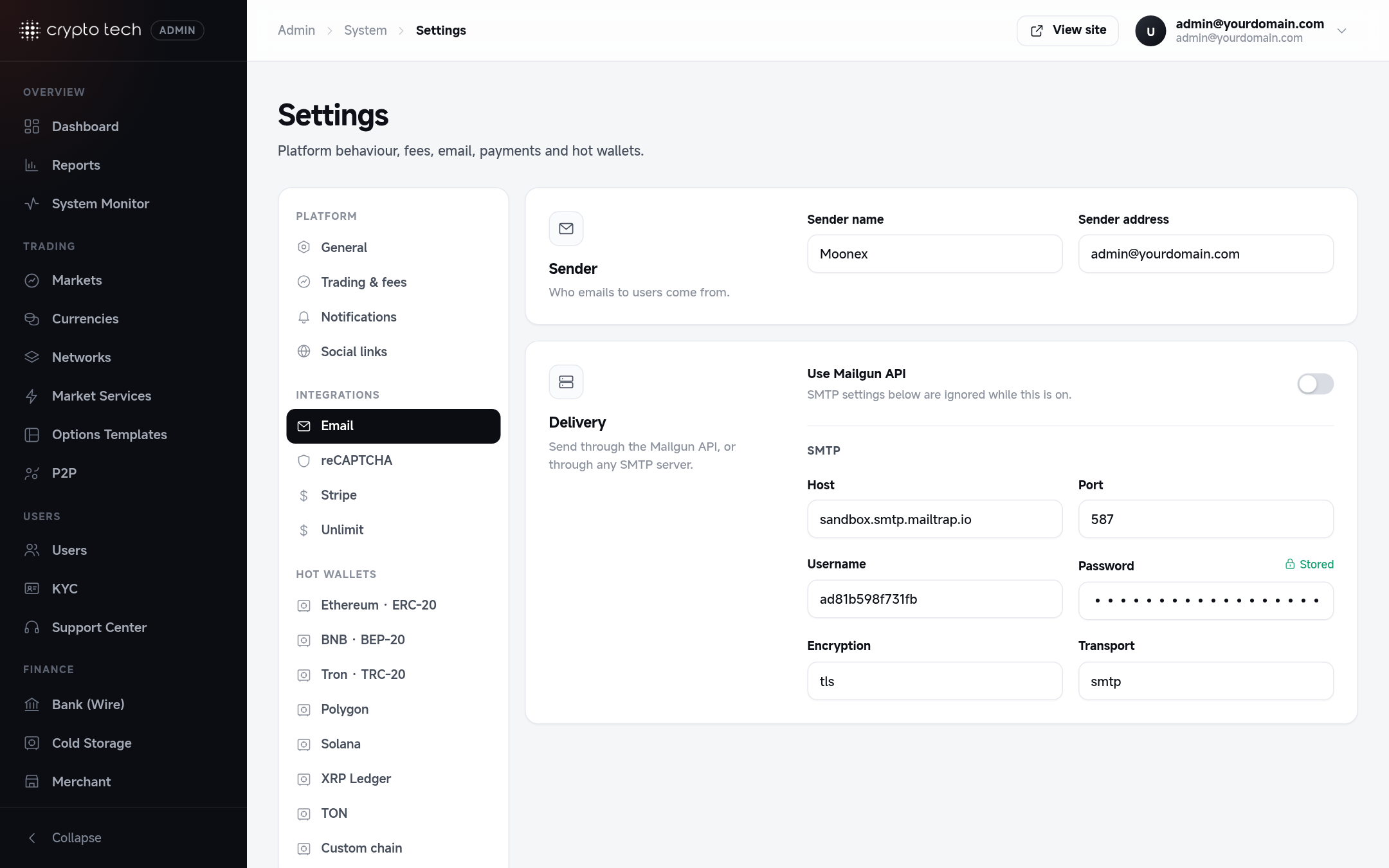
Every email the platform sends (verification, password resets, withdrawal confirmations, notifications) goes out through the settings here.
Stored in .env
Everything in this section except the Mailgun switch is written to the .env file. Read Settings stored in the .env file first: the file must be writable, and quotes and backslashes are removed from values.
Sender
| Field | Example | Notes |
|---|---|---|
| Sender name | Your Exchange | The name users see in their inbox |
| Sender address | [email protected] | Must be an address your mail provider lets you send from |
Delivery
Choose one of two ways to send.
Option A: Mailgun API
Turn on Use Mailgun API. While it's on, the SMTP fields are ignored.
| Field | What to enter |
|---|---|
| Mailgun domain | Your sending domain in Mailgun, for example mg.yourdomain.com |
| Region | US (api.mailgun.net) or EU (api.eu.mailgun.net), matching where your Mailgun domain was created |
| Mailgun API key | A sending API key from Mailgun |
Option B: Any SMTP server
Leave Use Mailgun API off and fill in your provider's SMTP details:
| Field | Typical value |
|---|---|
| Host | smtp.yourprovider.com |
| Port | 587 (STARTTLS) or 465 (SSL) |
| Username | Usually your full email address or an SMTP user |
| Password | Your SMTP password (no quotes or backslashes) |
| Encryption | tls for port 587, ssl for port 465 |
| Transport | smtp |
Make sure emails arrive
- Add the SPF and DKIM records your provider gives you to your domain's DNS. Without them, many inboxes send your emails to spam.
- Use a sender address on your own domain.
- Emails are sent by the queue workers. If nothing arrives, check that Horizon is running (
php artisan horizon:status) and look for failed jobs in the Horizon dashboard.