
Appearance
KYC review
Users upload identity documents and a selfie. Your team checks them and approves or rejects each application. Approval marks the user as verified, which gives them the higher withdrawal limit.
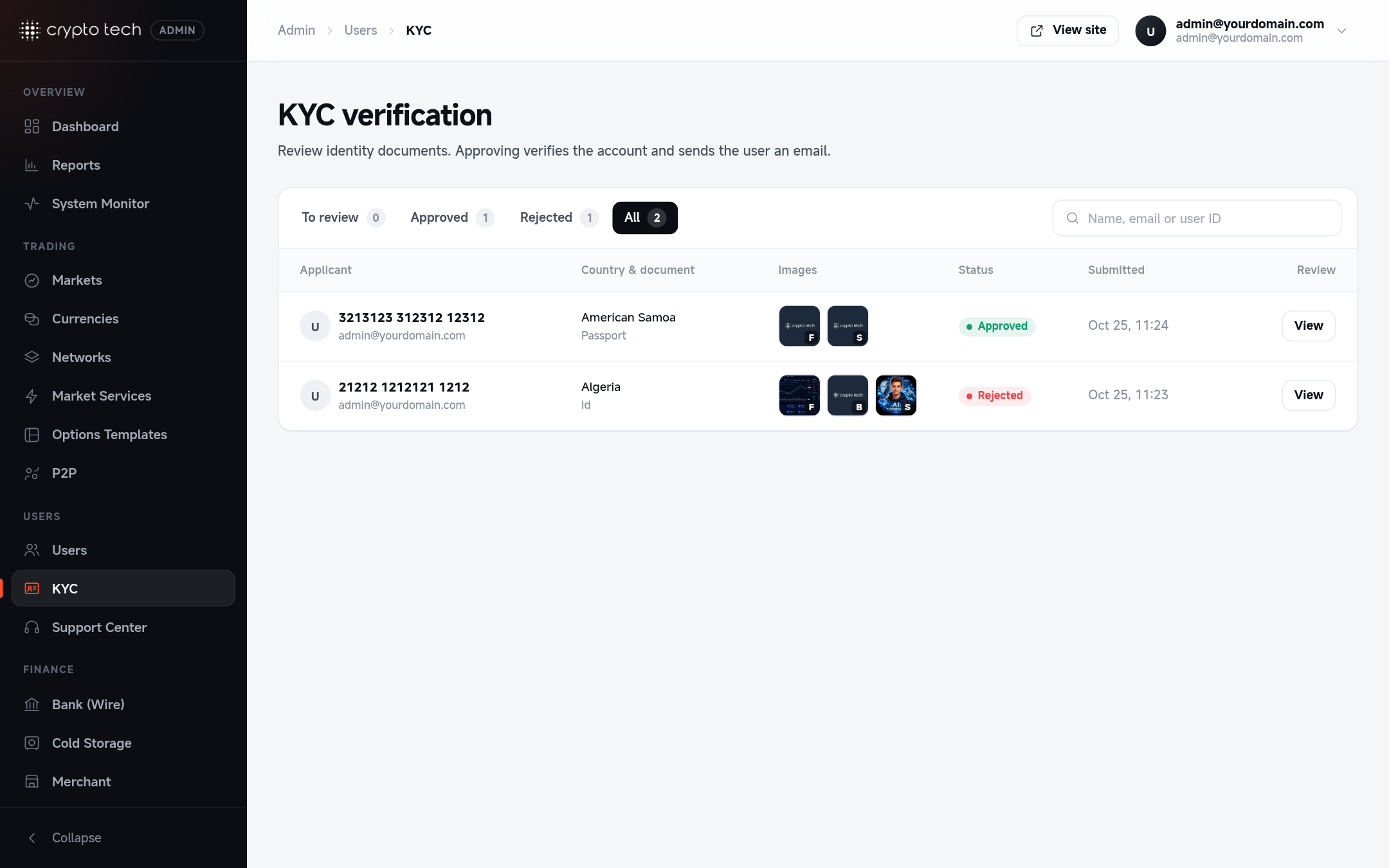
Find applications
Admin → Users → KYC. Tabs: To review, Approved, Rejected, All. Search by name, email or user ID. Each row shows the user, their country, thumbnails of the uploaded images and when they submitted.
New applications are counted on the Dashboard. You can also get an email for each one: see Notifications.
KYC must be switched on in General settings for users to upload documents.
Open the application
Click an application. The review dialog shows the images in tabs:
- Front of the ID document
- Back of the ID document
- Selfie
Click an image to open it full size.
Check the documents
Check that:
- the name matches the account,
- the date of birth and photo match the document,
- the document is valid (not expired) and readable,
- the selfie shows the same person as the document.
Approve or reject
- Approve & verify: the application is approved and the user becomes KYC verified.
- Reject…: choose a preset reason or write your own. The reason is shown to the user and included in the email they receive.
Preset reasons:
- The photo is blurry or cut off
- The document has expired
- The name does not match the account
- The selfie does not match the document
- This document type is not accepted
A rejected user can upload new documents and apply again.