
Appearance
Pages (CMS)
Pages are the legal, help and information pages of your site (terms, privacy, about, contacts and so on), each published at yourdomain.com/<url>. You can give every page its own version in each language.
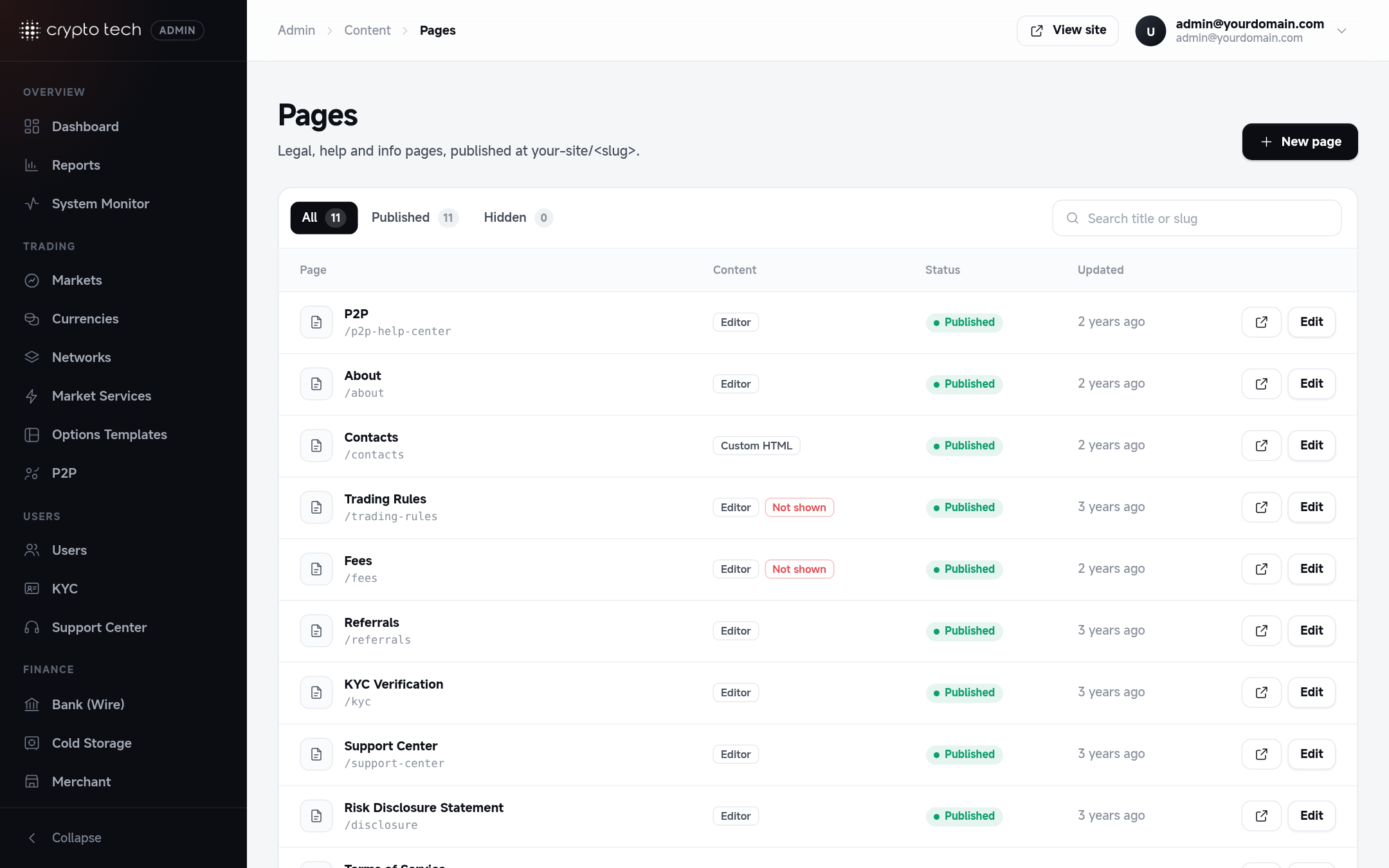
Starter pages
A new installation comes with these pages (from the PagesSeeder). Replace their text with your own before going live:
about · terms · privacy · disclosure · contacts · fees · trading-rules · kyc · referrals · support-center · p2p-help-center
Pages that are replaced by built-in screens
Some addresses belong to built-in screens, so a CMS page with that URL is never shown. The list warns you: "/fees shows a built-in page, not this one". Today this applies to fees and trading-rules, which show live fee and trading-rule tables instead. Other reserved addresses include login, register, markets, wallets, support, staking, launchpads and swap. Choose a different URL for your own pages.
The list
Search by title or URL, and filter by Published or Hidden. Each row shows which languages have their own version (and whether each is hidden), when it was last updated, and an Open on site link.
Editing a page
| Field | Meaning |
|---|---|
| Title | The page heading, for example Terms of Service |
| URL | The address after your domain, for example terms for /terms |
| Content type | Editor (a visual text editor) or Custom HTML (paste your own HTML) |
| Published | When off, the page isn't visible at its URL |
Long pages get an automatic table of contents built from their headings, so use headings (H2, H3) to structure legal text.
Search engines
| Field | Meaning |
|---|---|
| SEO title | The title shown in Google results. Defaults to the page title. |
| Description | One or two sentences for the search result |
| Keywords | Comma separated |
The Google preview shows how the result will look, with counters to keep the title and description to a good length.
Language versions
The bar at the top of the editor lists your languages. Default is the main text that every visitor sees unless their language has its own version.
- Choose a language in the bar.
- Write the translated title and content, and fill in the SEO fields.
- Turn on Published for that version. While it's off, visitors using that language see the default text.
- Save.
Delete version removes a translation (visitors then see the default text).
Deleting a page
Delete page removes it: its URL shows "not found", and footer links to it stop working. To take a page offline temporarily, turn off Published instead.