
Appearance
Merchant
The merchant module lets businesses accept crypto payments through your exchange: they create invoices, their customers pay in crypto, and the money arrives in the merchant's balance. This admin area oversees every merchant and payment.
Turning the module on
The Merchant section appears only when the module is enabled in .env:
ini
MERCHANT_ACQUIRING_ENABLED=true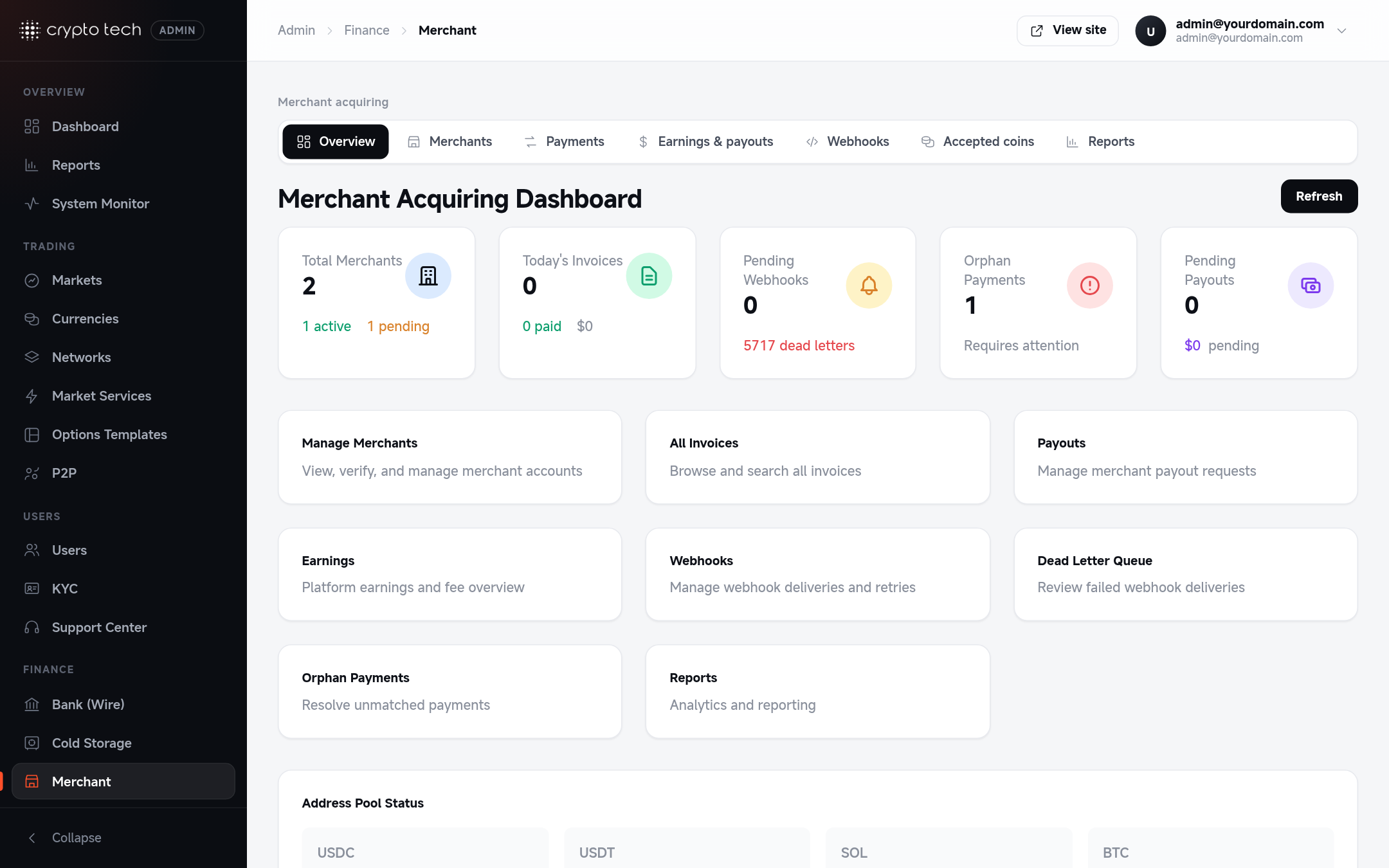
Sections
The merchant area has its own menu:
| Group | Pages | Use it to |
|---|---|---|
| Overview | Overview | See volume, invoices and payouts at a glance |
| Merchants | Merchants | Review merchant accounts, their settings and restrictions |
| Payments | Invoices · Unmatched payments · Refunds | Follow every invoice; match payments that arrived without a matching invoice (for example a wrong amount); approve and track refunds to customers |
| Earnings & payouts | Earnings · Deposits · Payouts | See what the platform earned in processing fees (overall and per merchant), and review merchants' withdrawals |
| Webhooks | Deliveries · Failed (dead letters) | Check notifications sent to merchants' servers, and retry failed ones |
| Accepted coins | Accepted coins | Which coins merchants can be paid in |
| Reports | Reports | Merchant activity reports |
Which coins can be used
A coin can be used for merchant payments when Merchant acquiring is on for it in Currencies → Merchant payments. That section also sets the processing fee, required confirmations, invoice limits and payment networks.
Unmatched payments
Sometimes a customer pays the wrong amount or pays after an invoice has expired. The payment then has no matching invoice and appears under Unmatched payments. Check it against the merchant's invoices and credit it to the right merchant.
Failed webhooks
Merchants' servers are notified of each payment by webhook. When a delivery keeps failing (the merchant's server is down, for example), it moves to Failed (dead letters). Ask the merchant to fix their endpoint, then retry.
Earnings per merchant
On Earnings, click a merchant to open their earnings page. It shows:
- Volume, with how many of their invoices were paid
- Platform fees the exchange earned from them
- Available balance (with the pending amount) and the total paid out
- a By month bar list for the last 12 months: volume, fees and paid invoices
- their latest paid invoices and payouts, each linking to its details page
Merchant profile opens the merchant's account under Merchants.
Reviewing payouts
Merchants request payouts from their dashboard (Merchant payments → Payouts). When the request is made, the amount is reserved from the merchant's available balance and the payout fee is worked out. Every request starts as Pending.
Open Earnings & payouts → Payouts and click a payout's reference to see its details page: the requested amount, the fee, the net amount, the destination address and memo, notes, errors and a timeline. The buttons at the top depend on the status:
| Status | Buttons | What happens |
|---|---|---|
| Pending | Approve · Reject | Approve (optional notes) moves it to Approved. Tick Send immediately after approving to send it in the same step. Reject needs a reason, which the merchant sees; the reserved amount goes back to their available balance. |
| Approved | Send now · Mark completed | Send now sends it from the hot wallet straight away. If you don't, the scheduler sends approved payouts automatically every 2 minutes (merchant:process-payouts, 10 at a time). |
| Sending | Mark completed | The bridge has it. When it reports the transaction, the payout is Completed; when the network refuses it, Failed and the amount goes back to the merchant (merchant:sync-transfers, every minute). |
| Sending + Needs review | Mark as sent · Not sent, give back | The result of the send is unknown (see below). |
| Failed | Retry | Nothing was sent and the amount is back in the merchant's available balance. The error is shown on the page. Retry reserves the amount again (the merchant needs enough balance) and sends it. |
| Completed, Rejected, Cancelled | none | Final. A merchant can cancel their own request while it is still pending. |
The crypto amount and the USD rate are fixed when the payout is sent, not when it is requested. The merchant is notified when a payout is approved, rejected or completed.
Mark completed is for payouts you sent by hand (outside the platform). Enter the transaction hash, and optionally an explorer link that the merchant will see.
Needs review
Payouts and refunds are sent exactly like user withdrawals: same network code, same bridges, same rules. When the platform can't tell whether the coins left the hot wallet (the connection dropped while sending, or the bridge reported nothing for 2 hours), the payout or refund is marked Needs review. It is never sent again or given back by itself, because the coins may already be on their way.
A red box on its page says why. Look for the transfer from the hot wallet to the destination address on the block explorer, then:
- Mark as sent: you found it. Enter the transaction hash; the payout or refund is completed.
- Not sent, give back: the hot wallet shows no such transfer. Say what you checked; the amount goes back to the merchant's available balance (for a refund: exactly what was taken from it).
Each decision counts once: a second click, or a late result from the bridge, changes nothing.
Messages after an action
After each button, a message at the bottom of the screen says what happened. When the server refuses an action or the transfer fails (for example "Payout approved but sending failed: …"), the message is red and the status shown on the page is the real one.
Refunds
Payments → Refunds lists every refund sent back to a customer. The cards at the top show the count and USD total for Pending, Processing, Completed and Failed (click a card to filter by that status). You can also filter by merchant, status, type and date.
Refunds are created when:
- a merchant refunds a paid invoice (from the API, see Merchant payments → Refunds), or
- your team refunds an unmatched payment to the address the customer gives (type Late payment), from Unmatched payments.
| Type | Meaning |
|---|---|
| Full | The whole amount received for the invoice |
| Partial | Less than the amount received |
| Overpayment | The invoice was overpaid. By default only the extra amount goes back. |
| Late payment | A payment that arrived without a matching invoice |
While a refund is open, the invoice shows Refunding. If the invoice had already been settled to the merchant's balance, the refund amount is taken from that balance.
A refund of a settled invoice is refused when the merchant's available balance can't cover it.
Every refund starts as Pending and waits for approval. Click a refund to open its details page: amount and value, destination address, reason, the invoice and customer payment it comes from, who requested and approved it, and a timeline.
| Status | Buttons | What happens |
|---|---|---|
| Pending | Approve · Cancel refund | Approve (optional notes, optional Send immediately after approving) moves it to Processing. |
| Processing (not sent yet) | Send now · Mark completed · Cancel refund | The scheduler sends processing refunds every 2 minutes (merchant:process-refunds, 10 at a time); Send now does it straight away. |
| Sending | Mark completed | The bridge has it; merchant:sync-transfers completes it when the transaction is reported, or marks it failed when the network refuses it. A refund being sent can't be cancelled. |
| Sending + Needs review | Mark as sent · Not sent, give back | See Needs review. |
| Failed | Retry | Nothing was sent; what was taken from the merchant balance is back, and the invoice has its old status again. Retry takes the balance again and sends. |
| Completed, Cancelled | none | Final. |
Cancel refund (optional reason, only before it is sent) sends nothing, gives back exactly what was taken from the merchant balance, and puts the invoice back to the status it had before the refund. Mark completed asks for the transaction hash of a refund you sent by hand.
Payouts, refunds and the hot wallet
Merchant payouts and refunds are sent from your hot wallets by the same network code as user withdrawals (the keys come from the hot wallet settings, never from the payout). They work on every network that can send user withdrawals except BRC-20 and the custom chain: Ethereum, BNB Smart Chain and Polygon (coins and tokens), Tron (TRX and TRC-20), Solana (SOL and SPL), TON, XRP and Bitcoin. If one fails because the hot wallet is empty or not set up, fix the wallet, then use Retry.
Invoice payments are found by the same deposit scanners as user deposits, and paid invoices are collected to the hot wallets by the same sweepers. On TON and XRP every invoice uses the hot wallet address with its own memo, so there is nothing to collect. A collection is marked done only when the bridge reports that the transfer went through; a failed one can be retried from Earnings & payouts → Deposits.
For how merchants use the module, see Merchant payments in the user-site guide.