
Appearance
Languages & translations
The site ships in 11 languages. Here you choose which ones appear in the language menu, set the default, add new languages, and edit any text on the site.
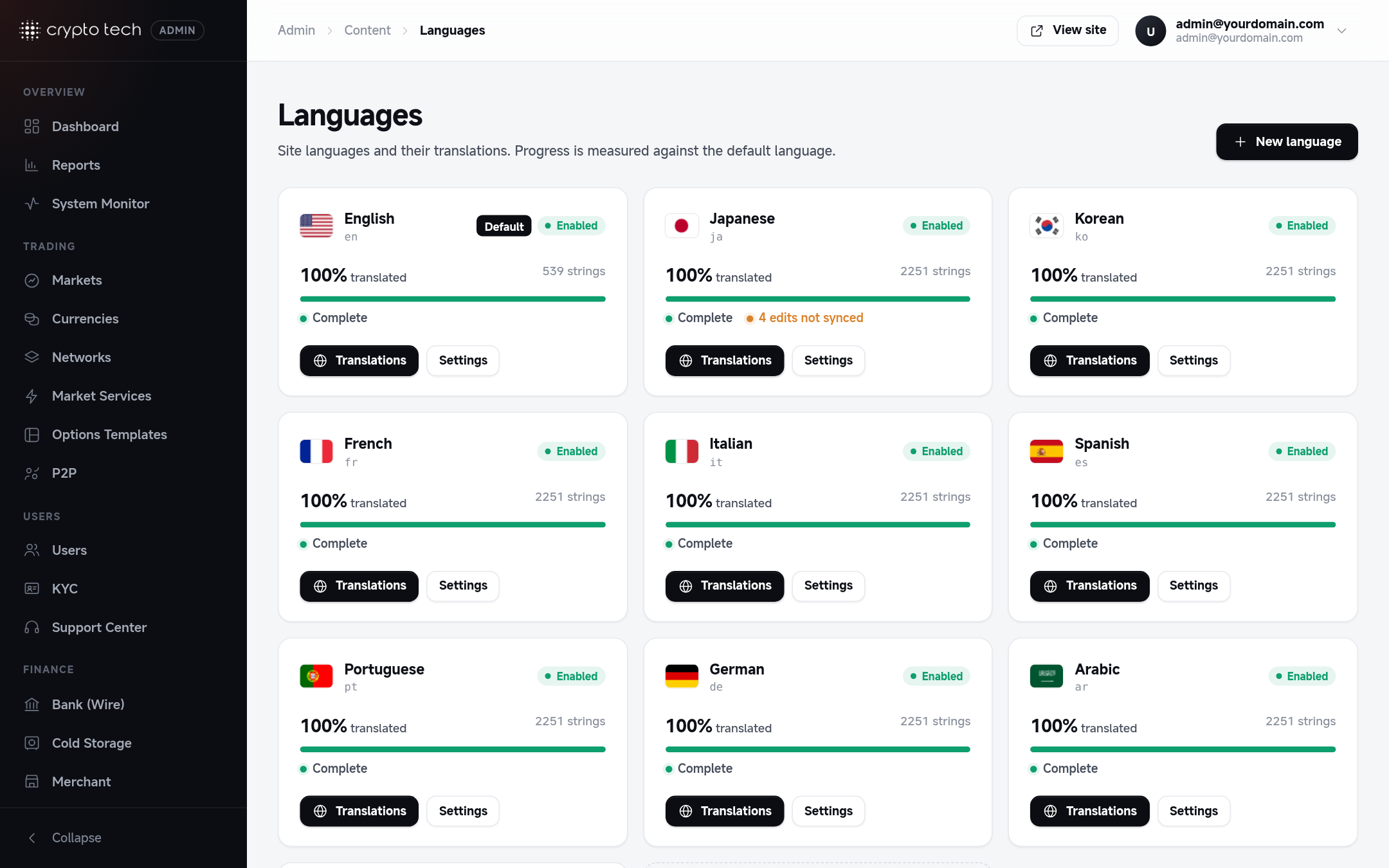
Included languages
English plus Japanese, Korean, French, Italian, Spanish, Portuguese, German, Arabic, Russian and Chinese. Arabic is shown right-to-left automatically.
Each language card shows how much of the site is translated, measured against the default language.
The language menu only appears to visitors when Language switcher is on in General settings.
Adding or editing a language
| Field | Meaning |
|---|---|
| Name | Shown in the language menu. Written in the language itself reads best, for example Español. |
| Code | The language code, for example es. It picks the flag and the translation file (resources/lang/es.json). |
| Enabled | Listed in the language menu |
| Default language | Used for new visitors, and the reference for translation progress |
Delete language: users who picked it fall back to the default language.
Adding a brand-new language
A new language starts with no translations. Create it here, then translate its strings (below). For a full translation, a translator can also fill in resources/lang/<code>.json directly, using the English file as the template.
Editing translations
Open a language's translations to see every text on the site, with its translation.
- Search for a word or phrase.
- Filters: All, Missing (not translated yet) and Not synced (edited here but not published yet).
- Click a string to edit it. The Key is the English text used in the site's code, for example "Log in". Copy source pastes the English text as a starting point.
Publishing with Sync
Edits are saved straight away, but visitors see them only after you publish:
- Make your edits. Each edited string shows Saved; press Sync to publish.
- Click Sync. Your edits are merged into the language file and go live.
Sync only adds and updates your edited strings. It doesn't remove anything else from the file.